
If your home or small-office PC still runs Windows 10, the clock has already run out: Microsoft ended support on 14 October 2025, and every month without security patches makes an internet-connected machine a little riskier. The good news is that many older PCs are one BIOS setting away from Windows 11, and the rest can usually be fixed with a targeted part swap instead of a full replacement.
This is a hardware-only guide written for buyers in Malta and the wider EU. It explains what the Windows 11 checks actually test, how to run them in a few minutes, what a realistic upgrade path looks like at each budget level, and when the honest answer is to buy a new machine. We do not cover workarounds for unsupported hardware, because a PC that fails the requirements should be upgraded, not patched with tricks Microsoft does not support.
Start with a five-minute triage
Before you spend anything, answer five questions about the PC: does it report TPM 2.0, does it boot in UEFI mode with Secure Boot, is the processor on Microsoft’s supported list, does it have at least 4 GB of RAM (16 GB is the practical target), and does the system drive have at least 64 GB, ideally on an SSD. These map directly onto the requirements on Microsoft’s Windows 11 specifications page: a compatible 64-bit processor at 1 GHz or faster with two or more cores, UEFI with Secure Boot, TPM 2.0, a DirectX 12 capable graphics card and a display of at least 720p.
The quickest first pass is Microsoft’s PC Health Check app. It tells you pass or fail and usually names the failing item. Write down the result, the exact CPU model, the motherboard model and the BIOS version, because every decision below depends on them.
Check first, buy second. A failed health check is a diagnosis, not a verdict, and a surprising number of failures are just disabled BIOS options.
What the end of Windows 10 support means for a Maltese household
Support ending does not switch the PC off. Windows 10 keeps booting, and your files stay where they are. What stops is the regular flow of security updates for consumers, as explained on Microsoft’s Windows 10 end-of-support page. For a computer used for online banking, tax paperwork or customer invoices, that gap grows more serious over time.
A warm climate adds a practical angle: older PCs that have run for years in hot rooms often have dust-clogged coolers and tired fans. If you are opening the case anyway for an upgrade, cleaning the fans and replacing dried-out thermal paste is a sensible bonus, not a requirement of Windows 11.
Symptom, cause, fix
The table below turns the most common health-check failures into actions. Use it as a map, then read the detailed sections for the steps.
| What you see | Likely cause | Fix |
|---|---|---|
| This PC can’t run Windows 11, mentions TPM | fTPM or PTT disabled in BIOS | Enable it in firmware; otherwise add a TPM module if the board has a header |
| Secure Boot not supported or off | Legacy/CSM boot mode, MBR disk | Convert the disk to GPT, switch to UEFI, enable Secure Boot |
| Processor not supported | CPU older than Microsoft’s lists | CPU swap on the same socket if supported, otherwise board + CPU + RAM |
| Passes but feels slow | HDD system drive or 4–8 GB RAM | SSD and 16 GB RAM |
Checking TPM 2.0 the right way
Press the Windows key and R together, type tpm.msc and press Enter. The window should state that the TPM is ready for use and show specification version 2.0. If it says no compatible TPM is found, do not assume the hardware is missing: on many boards the feature simply ships switched off.
Look in the BIOS under Advanced, Security or Trusted Computing for AMD fTPM, Intel PTT or Security Device Support. Microsoft’s guide to enabling TPM 2.0 on your PC shows how to reach the firmware settings, and the TPM overview explains what the chip does. Save, reboot and run tpm.msc again.
When a physical TPM module makes sense
Some older desktop boards have no firmware TPM but do have a TPM header. The pin layout differs between manufacturers, so only buy a module that the board manual lists by name. If the manual does not mention a TPM header at all, the board is likely at the end of its road for Windows 11 anyway.
UEFI, GPT and Secure Boot in plain English
Run msinfo32 and read two lines: BIOS Mode and Secure Boot State. You want UEFI and On. Windows installed in the old Legacy mode sits on an MBR disk, and the firmware cannot enable Secure Boot until the disk is GPT.
Microsoft’s MBR2GPT tool converts the disk in place without reinstalling, as documented in the MBR2GPT guide. The order matters: back up, convert the disk, then change the firmware to UEFI, then enable Secure Boot. Switching to UEFI before converting leaves Windows unable to boot.
Is your processor on the list?
Microsoft publishes the supported Intel processors and the supported AMD processors. As a rule of thumb, Intel Core 8th generation or newer and AMD Ryzen 2000 series or newer are in, but the list is the authority, not the rule.
Find the model under Settings, System, About. If the CPU is older than the rule of thumb, no firmware setting will change the outcome. Examples include Intel Core i5-6500 or AMD FX chips; this is the point at which you stop tweaking and start planning a platform change.
Upgrading the CPU on the same board
On a few older AMD platforms, a BIOS update adds support for later Ryzen generations, which can be the cheapest route to a supported processor. Always check the board maker’s CPU support list for your exact board revision and note the minimum BIOS version required. If you cannot find such a list, assume the swap will not work.
Memory and storage: the performance half of the upgrade
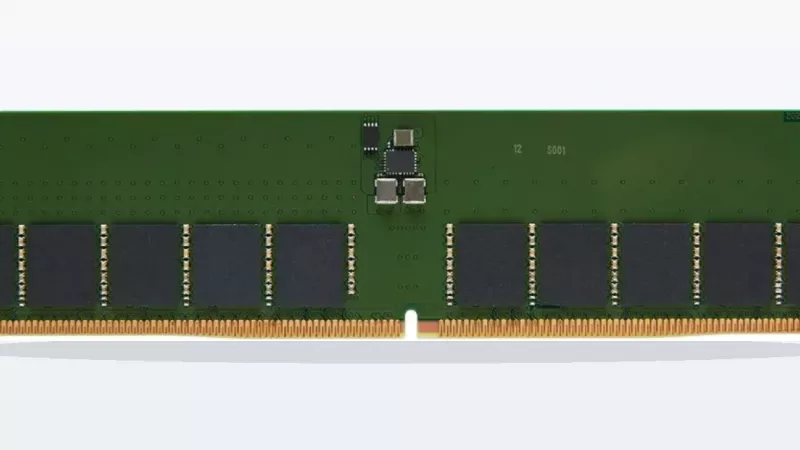
Windows 11 will install with 4 GB, but a PC that must last several more years should have 16 GB. DDR3, DDR4 and DDR5 are physically and electrically incompatible, so match the type your board uses. Browse memory (RAM) and check the board manual for supported speeds and the number of slots.
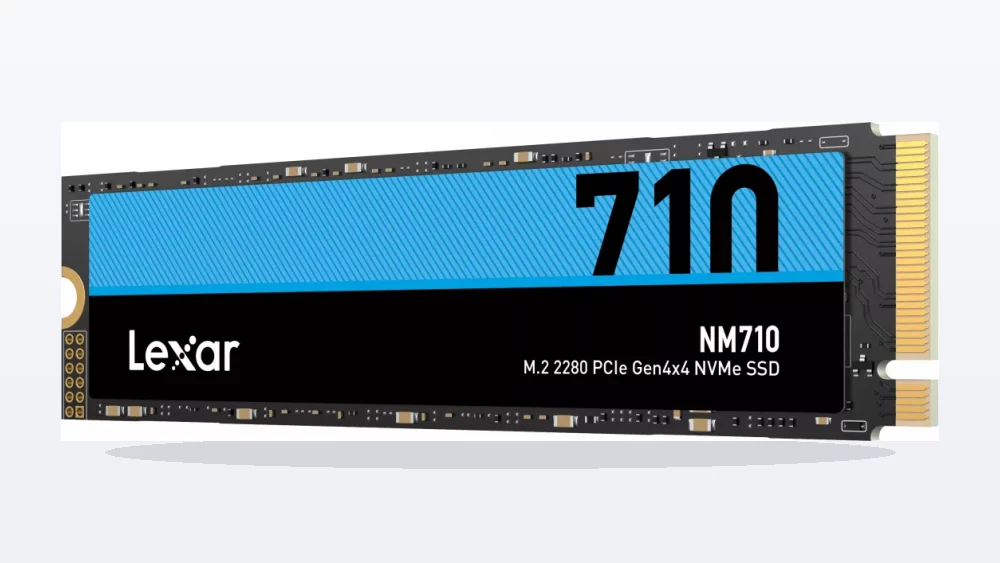
If the system drive is still a spinning hard disk, replacing it with an SSD is the most noticeable single upgrade you can make, with or without Windows 11. Choose from our solid state drives (SSD); SATA models suit older machines, while NVMe drives need a compatible M.2 slot. Memory and SSD prices have been moving up during 2026, so decide what you actually need before you shop.
Four upgrade routes compared
Prices change daily, so the table compares routes by effort and budget class rather than by cost. Check the linked categories for current pricing.
| Route | Best for | Effort | Budget class |
|---|---|---|---|
| Firmware settings only | Supported CPU, TPM or Secure Boot off | Low | Free |
| RAM and SSD top-up | Supported CPU but slow system | Low | Low |
| New board, CPU and RAM | Unsupported CPU, good case and PSU | Medium | Medium |
| New ready-built PC | Old everything, no time to build | Lowest | Medium to high |
Choosing a new platform: AM5, LGA1700 or LGA1851
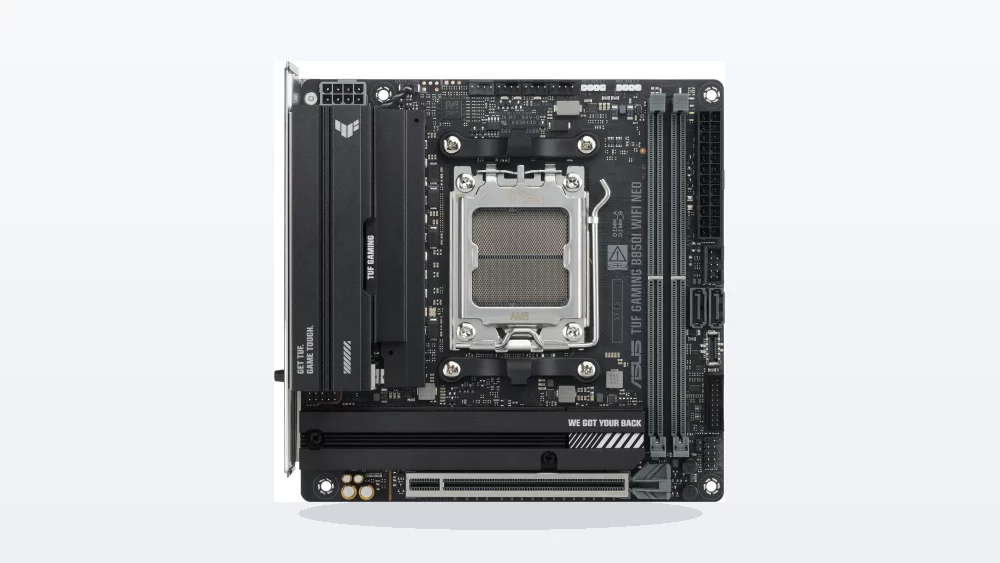
Replacing the processor usually means replacing the motherboard and memory too. Three current sockets cover most plans: AMD’s AM5 (see the AM5 chipset overview), Intel’s LGA1700 for 12th to 14th generation Core processors, and Intel’s LGA1851 for Core Ultra 200S. Check each processor against Microsoft’s lists, then browse motherboards and processors (CPUs) by socket.
AM5 and LGA1851 use DDR5 only. LGA1700 boards come in DDR4 and DDR5 versions, which can allow you to reuse DDR4 modules, but only if you buy a DDR4 board. Read the board listing carefully, because the wrong memory type is one of the most common returns.
Parts you might forget
A new socket often needs a new cooler bracket or cooler, and a power supply with the right connectors. Case size matters too: check that the board form factor fits. If the graphics card still works, you can normally move it to the new board.
When to stop upgrading and buy a ready-built PC
If the processor, board, memory and drive all have to change, you are replacing nearly the entire computer. At that point a complete system from our desktops and workstations category is often the simpler route: it arrives as one tested configuration, with the firmware features Windows 11 needs already supported.
A newer machine can also be quieter and draw less power when idle, which matters if the PC runs long hours. For a one-person business or a family computer, simplicity and a clean start are often worth more than reusing a single old part.
Laptops are a different story
In a laptop the processor is almost always soldered to the board, so an unsupported CPU means a new laptop. What you can often still change is the storage and, on some models, the memory. Check the manufacturer’s service manual before buying anything: if the RAM is soldered, the amount you bought is the amount you are stuck with, which is why it pays to choose generously when buying a new one.
If the laptop passes the checks but is held back by a slow disk, an SSD swap is usually straightforward. Many thin models use a single M.2 slot of a particular length, so confirm the length and whether it is SATA or NVMe before ordering.
When a laptop replacement is the smarter move
A laptop with an unsupported processor, a weak battery and a slow disk is rarely worth repairing piece by piece. Look at current laptops and notebooks and compare processor generation, RAM that is not soldered or is already 16 GB, and an NVMe drive. For desk use, a laptop plus an external monitor from computer monitors gives a comfortable setup.
Reusing parts from the old PC
Not everything has to go. A working case, power supply, drive bays, cables and sometimes the graphics card can move to the new build. Check the power supply connectors and wattage against the new board and CPU, and be cautious about reusing a very old power supply, since a failing one can damage new components.
The cheapest upgrade is the one you do not have to redo. Decide on the final configuration first, then buy once.
Planning a small-office rollout
If you manage three or four PCs, list them in a simple table with age, CPU, RAM, drive and the result of the health check. Sort the list by risk: machines that handle payments, customer data or banking move to the top. Upgrade or replace those first, and keep the less critical machines for the second round.
Standardising helps. Buying the same RAM type and the same SSD model for several machines simplifies support and spare parts. Keep a written record of BIOS versions and settings you changed, so a colleague can repeat the steps on the next PC without starting from scratch.
Software compatibility is a separate check
This guide is about hardware, but remember that old peripherals such as printers and scanners may need current drivers. Check the manufacturer’s support page for each device before the switch, so a driver gap does not look like a hardware fault.
Back up before touching anything
Whatever route you choose, copy your documents, photos and mail archive to an external drive first, and check that the copy opens. Firmware changes, disk conversion and motherboard swaps all carry a small risk of making the PC unbootable, and a backup turns that from a disaster into an inconvenience.
Also note your application sign-ins and Wi-Fi details. A new motherboard can make Windows ask you to reactivate or sign in again, and having your account details ready saves time.
Hands-on safety and assembly tips
Shut down, unplug the power cable and hold the power button for a few seconds to discharge the board. Touch the bare metal of the case before handling parts and avoid working over carpet. Seat memory with even pressure until both clips click, and drop the CPU into the socket without force.
After a motherboard change, update the BIOS before installing Windows 11, then confirm TPM and Secure Boot are enabled. A clean install usually gives a faster, more stable result than carrying an old installation onto new hardware.
Never move an old Windows installation across a platform change without a backup, and prefer a clean install when the motherboard and CPU both change.
Know your rights when you buy parts online
EU consumers have a statutory right to withdraw from most online purchases within 14 days, with exceptions such as opened software. Malta’s consumer authority, the MCCAA, publishes guidance on consumer rights and complaints. Keep packaging and order confirmations until you are sure the parts fit and work, especially for memory and storage you have only tested in your own machine.
Common mistakes
- Buying parts before running tpm.msc, msinfo32 and checking Microsoft’s CPU lists.
- Switching the firmware to UEFI before converting the system disk to GPT.
- Mixing memory generations, such as DDR4 modules on a DDR5 board.
- Ordering a TPM module without confirming the header type for that exact board.
- Skipping the backup.
- Searching for ways to force Windows 11 onto an unsupported processor instead of upgrading the hardware.
Upgrade checklist
- Run PC Health Check and note every failed item.
- Check TPM with tpm.msc and Secure Boot with msinfo32.
- Look up the exact CPU model in Microsoft’s Intel or AMD list.
- Confirm the system drive is an SSD and the RAM is at least 16 GB.
- Take a full backup and verify it.
- Update the BIOS, then enable fTPM or PTT and Secure Boot.
- Pick a route: settings, parts top-up, platform swap or new PC.
- After upgrading, run Windows Update and install current drivers.
Frequently asked questions
Can I move to Windows 11 without replacing anything?
Yes, if the processor is on Microsoft’s list and only TPM or Secure Boot is switched off. Firmware settings and possibly a disk conversion are then enough.
Is 8 GB of RAM enough?
Windows 11 requires 4 GB and 8 GB works for light use, but 16 GB is the better target for multi-year use with many browser tabs and video calls.
Do I need a new CPU just to get TPM?
No. TPM is usually a firmware feature of the processor or chipset and is enabled in the BIOS. A separate module is only needed when no firmware TPM exists and the board has a header for one.
What happens to my Windows 10 PC if I do nothing?
It keeps running, but it no longer receives regular security updates since 14 October 2025, so planning an upgrade is wise.
Is it worth upgrading a ten-year-old PC?
Often a new ready-built PC is the better buy, because nearly every component except perhaps the case and graphics card would need replacing. Compare the total cost of parts with a complete system.
Need memory, an SSD, a motherboard or a complete PC for Windows 11? Visit DistriNode.mt and choose parts that match your machine.
Leave a comment