

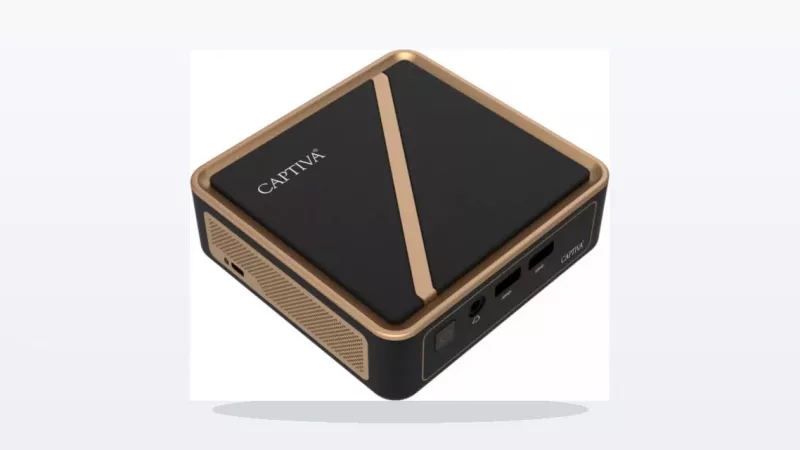
If your day is documents, browser tabs, video calls and streaming, a mini PC will very likely do the job of a desktop tower while using a fraction of the desk space. If your day is demanding games, 3D rendering or constant hardware swaps, a tower is still the better tool. This guide helps you decide for yourself, whether you are setting up a flat in Sliema, a home office in Mosta or a small business counter in Gozo.
We keep things practical: what a mini PC is, a quick decision table, the specifications that matter in 2026 (CPU, memory, M.2 storage, ports, Wi-Fi, cooling), how Windows 11 readiness fits in, and what EU consumer rules mean for a purchase made around Black Friday. You can browse the range under Mini PCs & Barebones (NUC).
The 60-second decision
Before reading details, use this table. It sums up where a mini PC is a comfortable fit and where it is not.
| Your main use | Mini PC? | Why |
|---|---|---|
| Office work, email, video calls | Yes | Light load for a modern mobile-class CPU |
| Living-room media and streaming | Yes | Small, quiet, easy to hide behind a TV |
| Home file server or smart-home hub | Yes | Low idle power, can run all day |
| Photo editing and light video | Yes, mid to high end | Needs more RAM and a fast SSD |
| Modern 3D games at high settings | Usually no | Needs a dedicated graphics card |
| 3D rendering, heavy workstation tasks | No | Needs cooling and power headroom of a tower |
What exactly is a mini PC?
A mini PC is a complete computer in a case usually between half a litre and a litre. It is built around the kind of power-efficient processor found in laptops. The category was popularised by the Intel NUC, and in 2023 Intel and ASUS agreed that ASUS would continue the NUC line (ASUS press release). That is why people still say “a NUC” for the whole class, even when the box comes from another maker.
Complete system or barebone
A complete system arrives with RAM and storage fitted. A barebone is the chassis, board and CPU only, so you add memory and an SSD yourself. Barebones are attractive when you already own parts, but you must check compatibility, and you will install the operating system yourself.
What you give up
You give up upgrade freedom. In most mini PCs you can replace RAM and the SSD, but not the CPU or graphics. That is acceptable only if you choose a sensible performance level on day one.
When a tower still wins
A tower wins on graphics and expandability. A powerful graphics card needs space, airflow and a strong power supply, which a small case cannot offer. Integrated graphics have improved and handle older titles and e-sports at moderate settings, but demanding new games at high resolution still call for a dedicated card. If that is you, look at desktops & workstations.
A tower also lets you add drives, swap the graphics card in a few years and fit special expansion cards. If your plan involves any of that, do not force a mini PC into the role.
A good test: write down the three most demanding things you do on your computer. If none needs a gaming-class graphics card, a mini PC deserves a serious look.
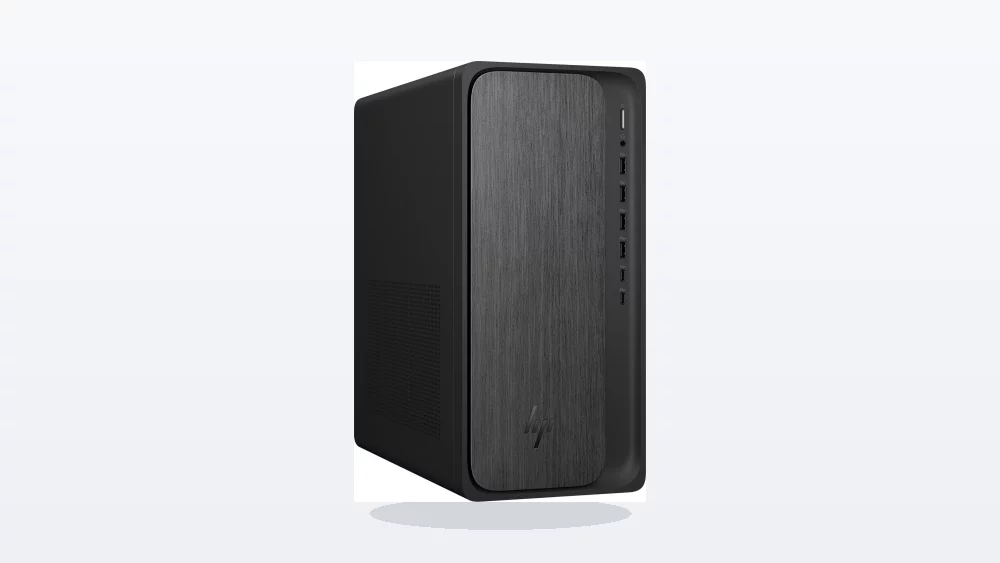
Mini PC vs tower vs laptop
| Feature | Mini PC | Tower | Laptop |
|---|---|---|---|
| Footprint | Tiny, can sit behind a monitor | Takes floor or desk space | Portable, includes screen and keyboard |
| Graphics | Usually integrated | Dedicated card possible | Integrated or modest dedicated |
| Upgrades | RAM and SSD | Almost everything | Limited |
| Typical noise | Low to moderate | Depends on cooling | Low to moderate |
| Power use | Generally low | Generally higher | Low, battery-backed |
| Screen and peripherals | Bought separately | Bought separately | Included |
Treat the table as a direction, not a guarantee. A high-end mini PC can use more power than an efficient low-end tower, so always check the specification sheet of the exact model.
The processor: reading the names
Mini PCs mostly use Intel Core Ultra, older Intel Core mobile chips or AMD Ryzen. AMD’s current mobile range includes the Ryzen AI 300 series, for example the Ryzen AI 9 HX 370, a chip you will find in upper-end models. For office work and media a mid-range processor leaves plenty of headroom.
Cores, threads and the NPU
More cores help with multi-threaded tasks such as video encoding but make little difference to everyday work. Newer chips also include an NPU for AI features; Microsoft explains the category on its NPU devices page. If you do not need those features, do not pay extra for them.
Memory: SO-DIMM or soldered
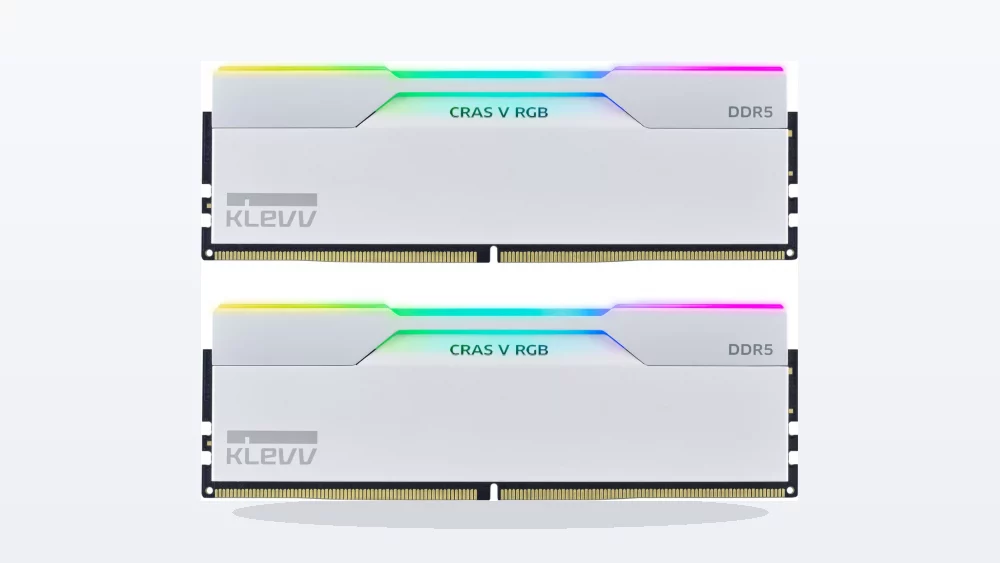
Many mini PCs take SO-DIMM modules, the small sticks used in laptops, so you can replace or extend memory. Others have memory soldered to the board: neat and compact, but not upgradeable. Look for the words “onboard” or “soldered” in the specification.
In 2026, 16 GB is a sensible starting point, and 32 GB is a wise margin for photo work, virtual machines and many open tabs. Also confirm whether the model uses DDR5 or older DDR4, because the modules are not interchangeable. Compatible modules are listed under Memory (RAM).
Storage: M.2 slots and SSDs
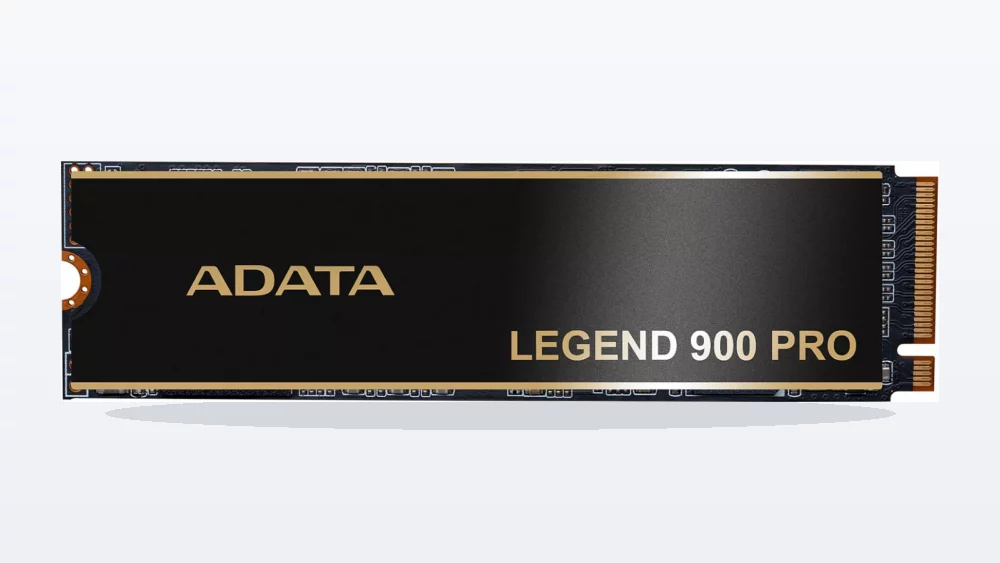
Almost every mini PC uses an NVMe SSD in an M.2 slot as its system drive. Count the slots and check their speed, because a second slot makes later expansion simple. Some models also have a 2.5-inch bay for cheap bulk storage.
A fast, reliable SSD improves boot and loading times more than a faster CPU does. Browse Solid State Drives (SSD). Memory and flash prices moved during 2026, so compare current prices in the category rather than relying on old numbers.
Ports worth insisting on
Ports decide how flexible the machine is. Count your monitors, drives and accessories, and compare them with the ports on offer.
USB-C, USB4 and Thunderbolt 4
USB4 is based on the Thunderbolt protocol and reaches up to 80 Gbps with certified cables, according to the USB Implementers Forum. Thunderbolt 4 guarantees tested 40 Gbps; see thunderbolttechnology.net. Plain USB-C is enough for many people, but fast external storage or a docking station justifies USB4 or Thunderbolt.
Video outputs
Check how many HDMI and DisplayPort outputs there are and whether USB-C can carry video. For high refresh rates on a TV, HDMI 2.1 is needed, and the HDMI Forum notes that Ultra High Speed cables are designed for systems up to 48 Gbps (HDMI 2.1). If you plan on two or three screens, browse computer monitors at the same time.
Networking and Wi-Fi
2.5 GbE is now common and useful for a home server or a fast fibre line. Wi-Fi 7 uses the 6 GHz band, supports 320 MHz channels and Multi-Link Operation, according to the Wi-Fi Alliance. It only helps if your router supports it too; buying Wi-Fi 7 hardware and keeping an old router is a common waste. In a flat with thick limestone walls, as many Maltese homes have, a cable or a mesh system often beats a faster standard on paper.
Cooling, noise and heat in a Maltese summer
A small case has to shed heat through a small fan, and warm rooms make this harder. Summers in Malta are hot, and a mini PC squeezed into a closed cabinet will run hotter and louder. Give it airflow, avoid stacking it on top of a router or set-top box, and consider VESA mounting behind the monitor where air can move. Read reviews of noise under load, not just at idle.
Many models include a VESA bracket. Check that your monitor has VESA holes and that the bracket is in the box; the computer then practically disappears from the desk.
Power use and running costs
A mini PC generally draws less power than a tower, especially idle and under light work, which matters when it runs around the clock as a server. Exact figures depend on the model, so look for the manufacturer’s power rating and think about your own hours. Do not assume it is always cheaper than an efficient tower.
Three buyer scenarios
It helps to think in people rather than model names. The first is the remote worker who lives in video calls, shared documents and cloud tools. A mid-range processor, 16 GB of memory and a reliable NVMe drive are plenty, and the saved budget is better spent on a good monitor, which is easier to live with every day than a faster chip.
The second is the household that wants one quiet computer by the television for streaming, family photos and children’s homework. Here the priorities are a silent fan, the right HDMI port and enough storage for photo albums. The third is the enthusiast who wants a small always-on server for backups and a media library. That person needs wired 2.5 GbE, a second storage slot and cooling that stays stable through long uptime, because a server runs for many more hours than a desktop.
Setting up in the first week
When the machine arrives, check that the box contains everything you expected: the power supply, the VESA bracket and cables. Then confirm in the system information that the memory and storage match your order and that the network link negotiates at the speed you paid for. Install firmware and driver updates according to the manufacturer’s instructions, and run a long task, such as a large update, to hear the fan under load before you mount the computer permanently behind the monitor.
Peripherals that complete the setup
A mini PC does not include a screen, keyboard or mouse, so budget for them. If you plan to mount the computer behind the display, buy a monitor with VESA holes. If you want a fast external drive, make sure a USB4 or Thunderbolt port is available. These small decisions decide whether the machine feels tidy or cluttered.
The best mini PC is the one whose ports, memory and cooling match your desk, your screens and your hours of use.
Windows 11 readiness
Microsoft ended Windows 10 support on 14 October 2025, and the consumer Extended Security Updates programme ran until 13 October 2026. A computer bought now should therefore be ready for Windows 11. The official requirements include a compatible 64-bit CPU, 4 GB RAM, 64 GB storage, UEFI with Secure Boot, TPM 2.0 and a DirectX 12 graphics device. This is a hardware matter only: confirm that the model supports TPM 2.0 and Secure Boot. Modern mini PCs normally meet the requirements, but check the specification.
Which specification for which user?
| User | Memory | Storage | Check |
|---|---|---|---|
| Office and home office | 16 GB | One NVMe SSD | Two video outputs, quiet fan |
| Media centre | 8–16 GB | NVMe plus external drive if needed | HDMI that suits the TV |
| Home server | 16–32 GB | Two M.2 slots or a 2.5-inch bay | 2.5 GbE, stable cooling |
| Photo and light video | 32 GB | Fast NVMe, ideally two slots | Strong CPU, USB4 or Thunderbolt |
EU consumer rights when you buy
Buying in Malta means EU consumer law applies. For online purchases you generally have a 14-day right of withdrawal under Directive 2011/83/EU, with some exceptions; the practical guide is on the Your Europe portal. National information and complaints go through Malta’s Malta Competition and Consumer Affairs Authority. Keep your order confirmation and read the product description carefully before you buy, paying particular attention to what is included in the box and to the exact memory and storage configuration.
Black Friday and Cyber Monday
Black Friday falls on Friday 27 November 2026 and Cyber Monday on Monday 30 November. Under Directive (EU) 2019/2161, any announced price reduction must state the prior price, which is the lowest price applied during at least the previous 30 days. Use that rule to separate real deals from fake ones. Write down your required specification first, and compare the complete package: a cheap barebone without RAM and SSD may cost more once complete than a ready-to-run model.
Do not buy for today’s minimum requirements. Buy for how you will use the machine in three years’ time.
Common mistakes
- Buying a model with soldered memory and discovering 8 GB is too little.
- Forgetting that a barebone ships without RAM and SSD.
- Expecting gaming performance from integrated graphics in demanding new titles.
- Buying Wi-Fi 7 and keeping an old router.
- Not matching video outputs to the monitor inputs.
- Placing the machine in a closed cabinet with no airflow.
- Skipping the TPM 2.0 and Secure Boot check.
Buying checklist
- Define the use: office, media, server, photo or gaming.
- Pick the CPU class by need, not by name.
- Check SO-DIMM versus soldered memory, and DDR4 versus DDR5.
- Count M.2 slots and any 2.5-inch bay.
- Match video outputs and USB-C features to your screens.
- Decide whether you need 2.5 GbE and Wi-Fi 6E or Wi-Fi 7.
- Check the VESA bracket and airflow where it will sit.
- Choose barebone or complete system.
- Confirm TPM 2.0 and Secure Boot for Windows 11.
Should you wait or buy now?
Waiting for a better deal is reasonable only when your current computer still serves you. If your old machine cannot run Windows 11, you are already running without the regular support Windows 10 had, so the cost of waiting is not zero. A practical approach is to settle on your specification now, track the category over the next weeks, and buy when a model that matches your list is genuinely cheaper than its recent price. That way a promotion helps you instead of steering you toward a machine you did not need.
It also makes sense to think about the accessories you will need in the same order: a monitor with VESA holes, extra memory if the model allows it, and a second SSD for backups. Buying them together avoids a second round of compatibility checks and keeps the setup consistent. Remember that memory and flash prices have been volatile in 2026, so confirm the live price of each part in its category before you commit.
Frequently asked questions
Can a mini PC replace my desktop?
For work, web and media, usually yes. For demanding games and heavy workstation tasks, no.
Can I upgrade a mini PC?
Often you can replace RAM and the SSD, provided the memory is not soldered. The CPU and graphics normally cannot be changed.
How much RAM do I need?
16 GB suits everyday use; 32 GB gives margin for photo work, virtual machines and many open programs.
Are mini PCs quiet?
Many are quiet at light load, but noise under load varies by model. Read reviews and give the machine airflow.
Will it run Windows 11?
Modern mini PCs normally meet the hardware requirements, but check TPM 2.0, Secure Boot and CPU support in the specification.
How long will a mini PC last?
With clean vents and good airflow it can serve for many years. Software demands, not hardware failure, usually decide when you replace it.
At DistriNode you will find mini PCs, barebones, memory, SSDs and monitors, with current prices shown in each category. Start with Mini PCs & Barebones (NUC) or visit DistriNode.mt.
Leave a comment